Slack Integration with SmartUI
This document will guide you to integrate your SmartUI jobs and Slack, allowing you to receive real-time notifications and crucial job details directly within your Slack workspace.
Prerequisite
- An active TestMu AI account with Admin or User-level access.
- Set up a dedicated Slack channel where you want to receive notifications from SmartUI.
- Should have setup the SmartUI suite.
Step 1: Navigate to the Integration Page
- Login to your TestMu AI Account.
- Navigate to the Settings > Integration page.
- Select the Communication tab and search for Slack.
Step 2: Integrate the Slack with your TestMu AI Account
- Click on the Connect button and then Install for the Slack integration.
NOTE : If you are already logged into Slack, you'll be redirected to a page where you have to post to a channel to confirm your identity or else you will be asked to provide Slack URL of your workspace.
- Select the channel you want to post on. Click on Allow button.
A notification would be shared on to all the members belonging to that channel, informing about your integration.
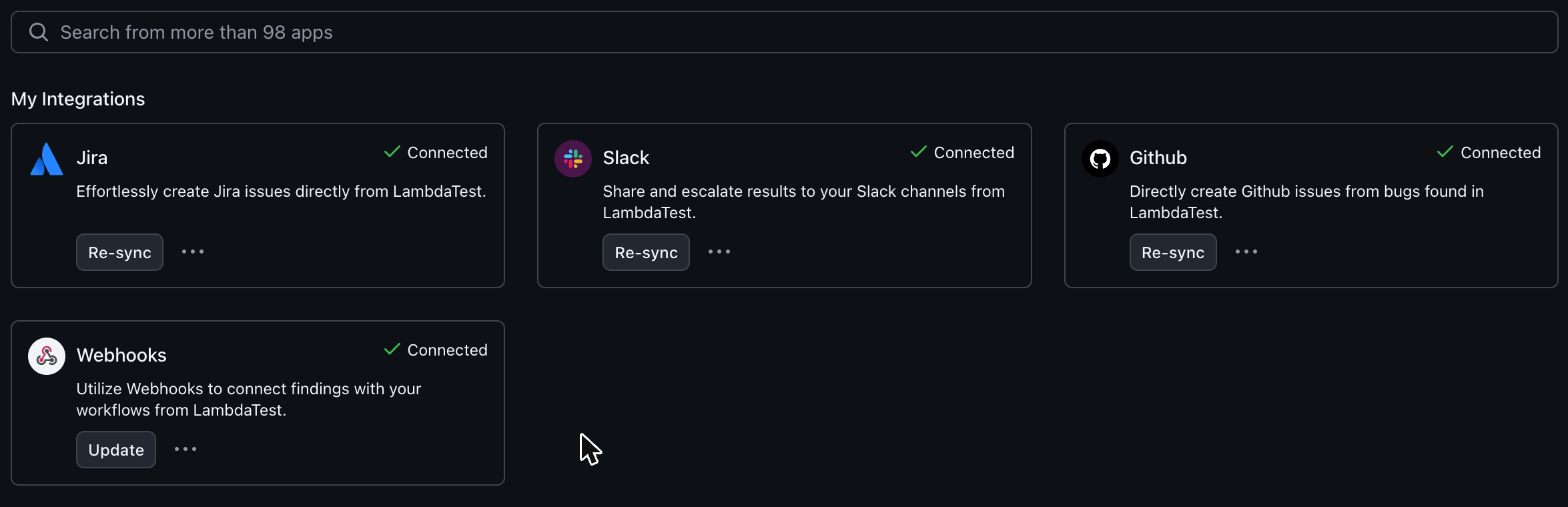
Once Slack is connected, it shows as Connected under My Integrations.
Step 3: Choose Which Builds Send a Slack Message
Slack alerts are set per project.
- Go to your desired Project.
- Click on the Project Settings button and open the Notifications tab.
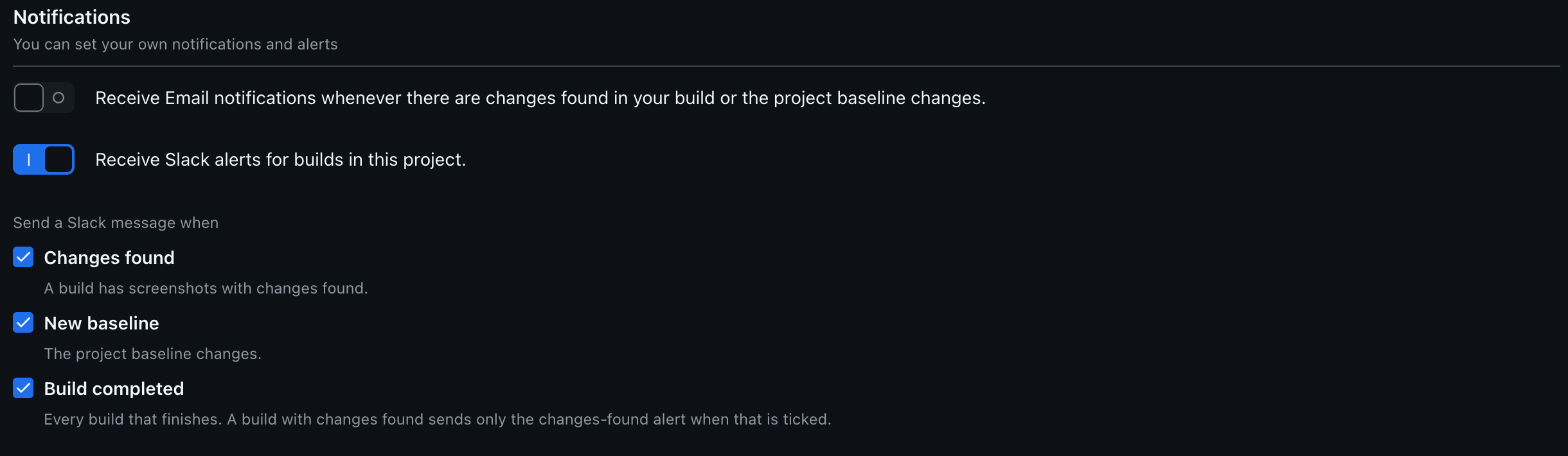
- Turn on Receive Slack alerts for builds in this project.
- Under Send a Slack message when, tick the events you want.
- Click on the Save Settings button.
| Event | Default | What you get |
|---|---|---|
| Changes found | On | An alert when a build has screenshots with changes found, listing each mismatched screenshot. |
| New baseline | On | An alert when the project baseline changes. |
| Build completed | Off | One message for every build that finishes, whatever its result. |
The event checkboxes appear only after Slack is connected for your organization. Until then, the Notifications tab asks you to configure the Slack integration.
Step 4: Run a Build and Check Slack
Run a build in the project and open the Slack channel you selected in Step 2. Each message links to the build in SmartUI.
Slack Messages Sent by SmartUI
Changes Found Alert
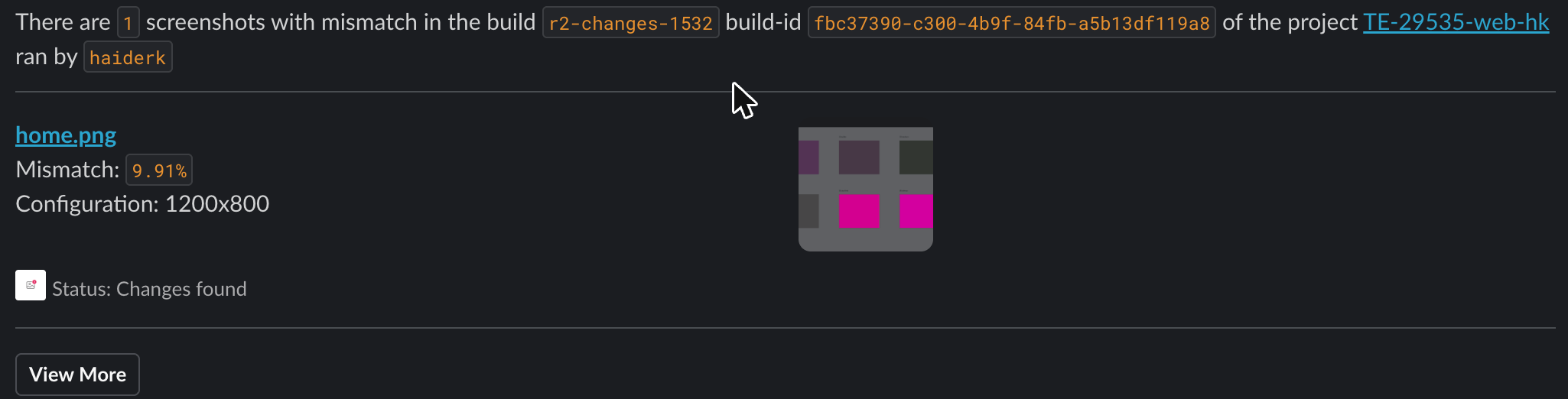
Sent when Changes found is ticked and a build has screenshots with changes found. It lists each mismatched screenshot with its mismatch percentage and configuration.
Build Completed Messages
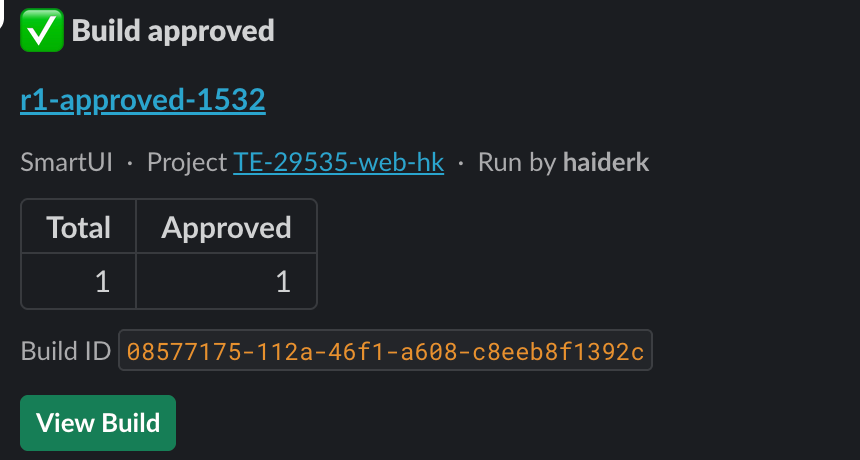
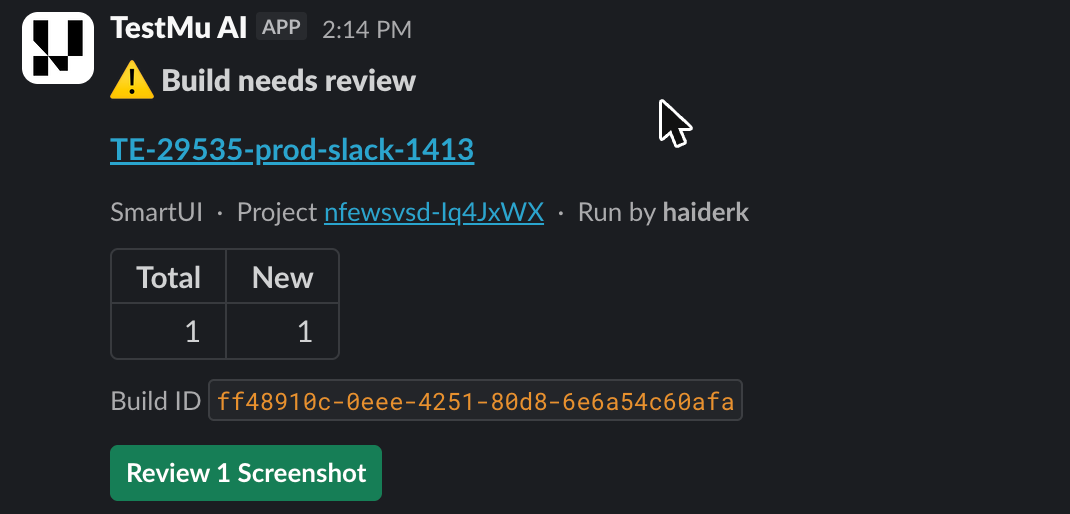
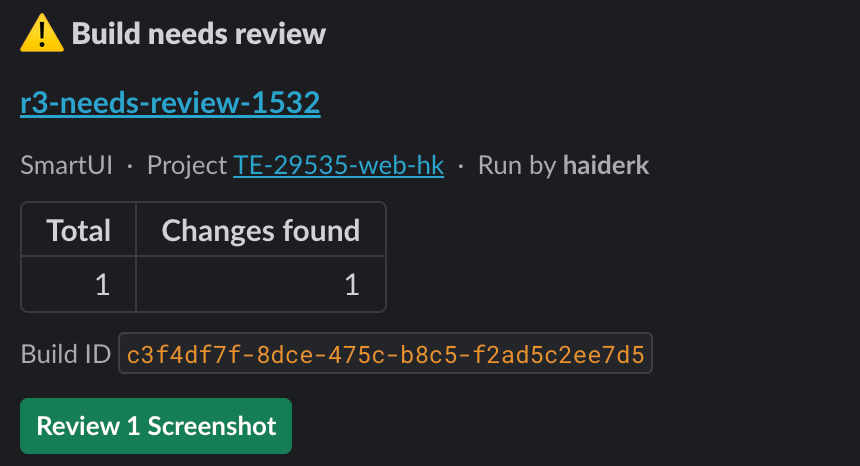
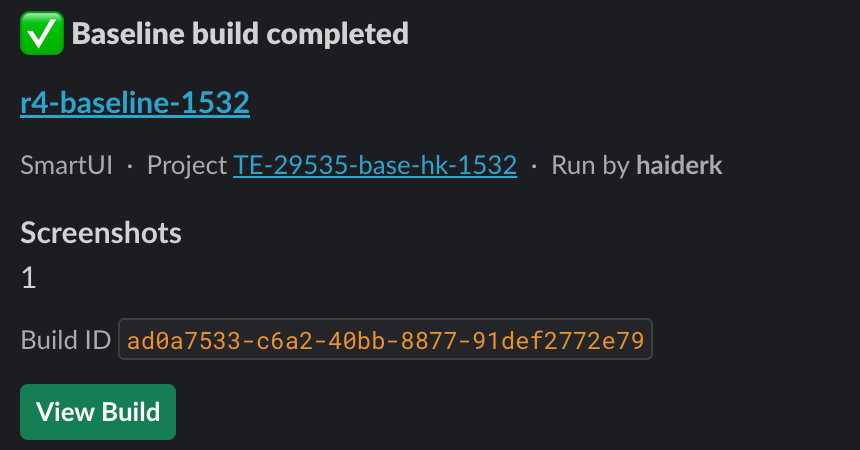
Sent when Build completed is ticked. Each message shows the build result, a link to the build, the project, who ran it, the screenshot counts, the build ID and a button to open the build.
| Message | When it is sent |
|---|---|
| Build approved | Every screenshot in the build is approved. |
| Build needs review | The build has new screenshots, changes found or screenshots under review. The button opens the screenshots to review. |
| Baseline build completed | A baseline build finished. Shows the number of screenshots. |
| Build failed | The build finished without capturing any screenshots. |
How SmartUI Picks the Message
- A build sends one message. If it has changes found and Changes found is ticked, you get the changes found alert instead of the build completed message.
- If Changes found is not ticked and Build completed is, a build with changes found sends Build needs review with the counts.
- The build completed message is sent shortly after the build finishes, so the counts are final. Builds that finish per test session wait until the last session has ended.
- Rerunning a single screenshot does not send a build completed message.
- If Build completed is not ticked, the project gets the same alerts as before.
Remove the Slack Integration
- Go to the Settings > Integration page.
- Select the Communication tab and search for Slack.
- Click on the Remove button.
 Chat with Us